

A frozen computer can mean two very different things: one application has stopped responding, or the whole device has stopped accepting input. That distinction is the first useful clue. Before you force a restart, check whether the pointer moves, whether another app opens, and whether coworkers are seeing the same problem.
If the computer turns itself off or reboots instead of staying stuck, use our guide to unexpected restarts. The causes overlap, but the first checks are different.
What to do when your computer freezes

- Give it a minute. A large file, update, or backup can make an application appear stuck while work continues in the background.
- If only one app is affected, close that app. On Windows, Task Manager opens with Ctrl + Shift + Esc. On a Mac, Command + Option + Esc opens Force Quit. You may lose unsaved work in that app.
- If the entire device remains unresponsive, use the normal restart control if it is available. Hold the power button only when there is no other way to shut down. A forced shutdown can lose unsaved work or interrupt an update.
- Once the device starts, save important work and confirm that your business files are backed up. Avoid running repeated repair tools against a drive that is clicking, reporting errors, or losing files.
- Write down what happened: the time, the app in use, any error message, connected devices, recent changes, and whether the freeze happened again. Those details help an IT technician narrow the cause.
If a shared application freezes for several employees at once, report it as a broader service issue. Restarting every workstation may erase useful evidence while the real problem sits on a server, network, or cloud service.
Six common causes of a computer that keeps freezing
1. Memory or processor pressure
Video meetings, browser tabs, spreadsheets, and business applications can compete for memory and processor time. When the device runs short of available memory, it may lean on slower storage and appear frozen. After a restart, check Task Manager or Activity Monitor for an app that repeatedly consumes most of the available resources. Close what you do not need, then ask your IT team whether that device has enough capacity for the software it actually runs. An upgrade is useful only when the hardware supports it and capacity is the cause.
2. One unstable application
If the pointer still moves and other programs work, the problem may be limited to one application. Note the file or action that triggers it. A damaged document, browser extension, application update, or conflict with another tool can all produce the same symptom. Check for an approved update and share the pattern with your support team before removing a business-critical application.
3. Low storage or a failing drive
A nearly full drive can interfere with temporary files, updates, and virtual memory. Check how much free space remains and remove only files you know are safe to delete. A failing drive is more urgent. Clicking sounds from a hard disk, corrupted files, recurring storage warnings, or freezes while opening files call for a backup check and professional diagnosis. Repeated restarts and intensive scans can make recovery harder when the hardware is failing.
4. Updates, drivers, or damaged system files
Operating-system and driver problems can cause freezes, especially when symptoms begin immediately after a change. Record the update date and any error code. Install only updates approved for the business device. An IT administrator may need to check compatibility with security software and line-of-business tools. Windows System File Checker and macOS Safe Mode can help with diagnosis, but they do not identify every cause and should not replace a backup.
5. Heat and cooling problems
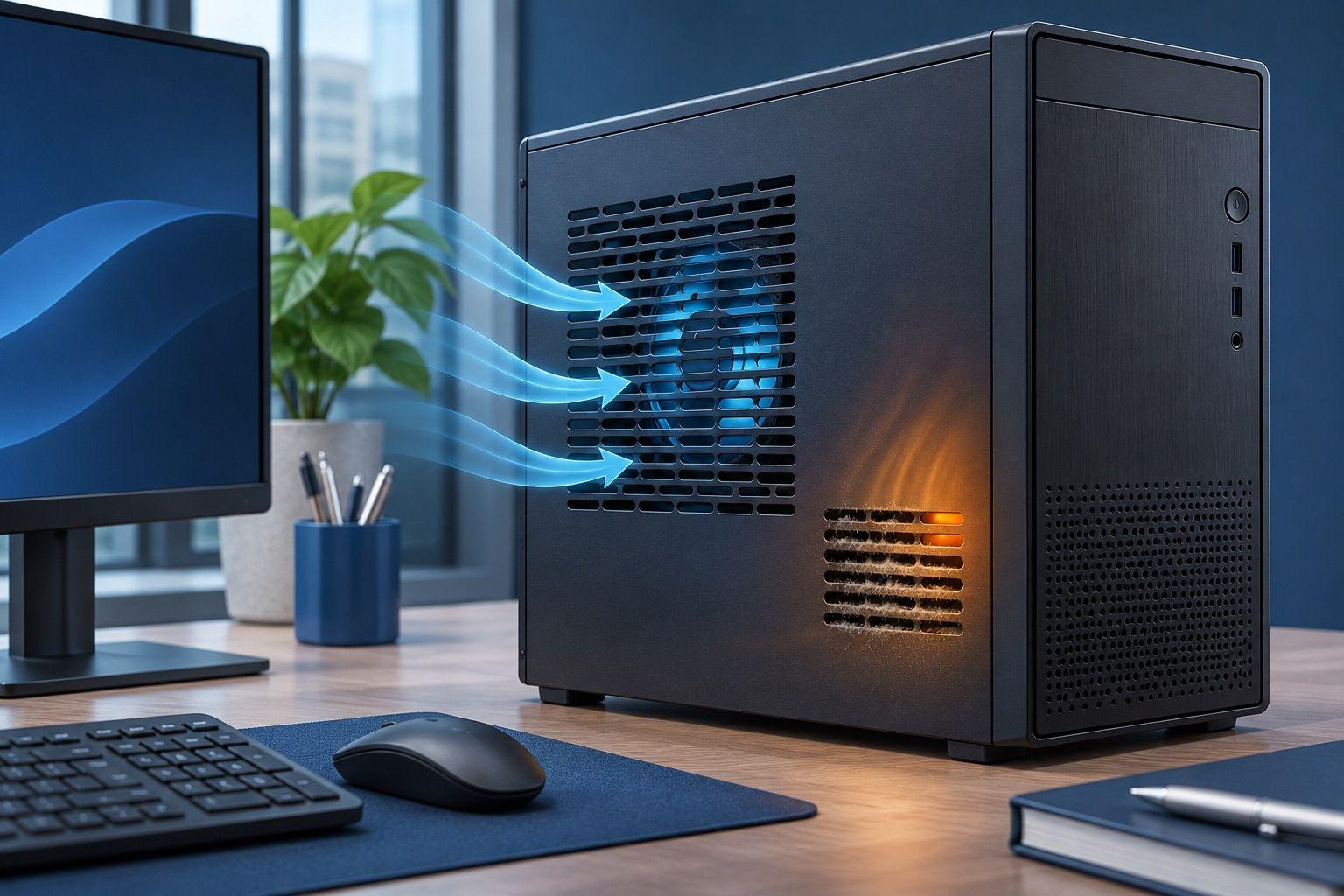
Blocked vents, dust, or a failing fan can raise temperatures and make a computer unstable. Keep vents clear and avoid using a laptop on a soft surface. If the case is unusually hot or a fan runs loudly all day, shut the device down and have it inspected. Do not open a work computer or remove cooling parts unless your organization has approved that work.
6. Security software or unwanted programs
Unwanted software can consume resources or interfere with normal operation, though a freeze alone is not evidence of malware. Use your organization's approved endpoint protection to scan the device. If you also see suspicious sign-ins, unexpected pop-ups, or altered files, contact IT promptly. Follow its incident instructions before disconnecting or cleaning the device so evidence and remote access are handled correctly.
Which clues should you give your IT provider?
Tell the technician whether one app, one computer, or several people were affected. Include the exact time, any on-screen message, recent software or hardware changes, and whether the problem appears during startup, video calls, file access, or a particular task. If several workstations freeze together, note their shared application or location. This short record is usually more useful than a long list of attempted fixes.
CEC has supported Bay Area organizations since 1988 with remote and on-site support, computer repair, and ongoing IT management. For a recurring freeze, the immediate goal is to restore work safely. The next goal is to find out whether the device, an application, or a shared system needs attention. See CEC's computer repair service in San Jose for repair options, or managed IT services if freezes are part of a wider pattern of workplace downtime.
When to ask for help
Contact your IT provider when freezes recur, files become inaccessible, the drive makes unusual noises, or several employees are affected. Seek help promptly if there are signs of a security incident. A technician can review logs, drive health, memory use, and recent changes without making a replacement decision on guesswork alone.
If your business is dealing with repeated freezes, request a free IT evaluation and describe when the problem occurs. CEC can help determine whether repair, an equipment change, or broader support is the right next step.
Frequently asked questions
Why does my computer freeze only during video meetings?
Meetings can put extra load on memory, the processor, camera, and network connection. Check whether the whole computer freezes or only the meeting app, then note the meeting software and any recent updates. That distinction helps identify which component to investigate.
Can low storage make a computer freeze?
It can contribute to slowdowns and instability because the system needs working space for temporary files and updates. Low storage is one possible cause, not a diagnosis. Check available space and look for other symptoms before deleting files.
Is a freeze the same as an unexpected restart?
No. A freeze leaves the computer on but unresponsive. An unexpected restart shuts it down and starts it again. Power faults and system crashes deserve particular attention when the device reboots. See the restart troubleshooting guide for those checks.