

Table of Contents
- Why Choose On Site Computer Repair San Jose Over a Drop-Off Shop
- On Site Computer Repair San Jose: What Services a Technician Brings to You
- How to Get an Accurate Computer Repair Cost Estimate Before the Visit
- What an IT Support Response Time Service Level Agreement Actually Covers
- Red Flags and Green Flags When Vetting a Local Technician
- How to Prepare Your Office or Home for a Productive Repair Visit
- Get Your Systems Back Online With a Local Expert
- Frequently Asked Questions
Last Updated: September 6, 2026
Why Choose On Site Computer Repair San Jose Over a Drop-Off Shop
When your business network goes down mid-morning, every idle minute costs billable hours. On site computer repair San Jose services eliminate the most frustrating part of IT crises: the wait. Instead of packing sensitive hardware into a car, driving across town, and hoping a shop technician gets to it within a few days, a technician comes to your office, diagnoses the issue on your premises, and often completes the repair in a single visit.
The difference matters most for businesses handling confidential data. Medical practices, law firms, and accounting offices cannot casually hand over hard drives containing protected client information to a third-party counter. A technician working on-site under your supervision keeps hardware and data within your controlled environment. This guide from Computer Experts Corp, the Bay Area’s oldest IT service provider, explains what a mobile tech visit actually covers, how to price it accurately, and how to prepare so the first visit resolves the problem.
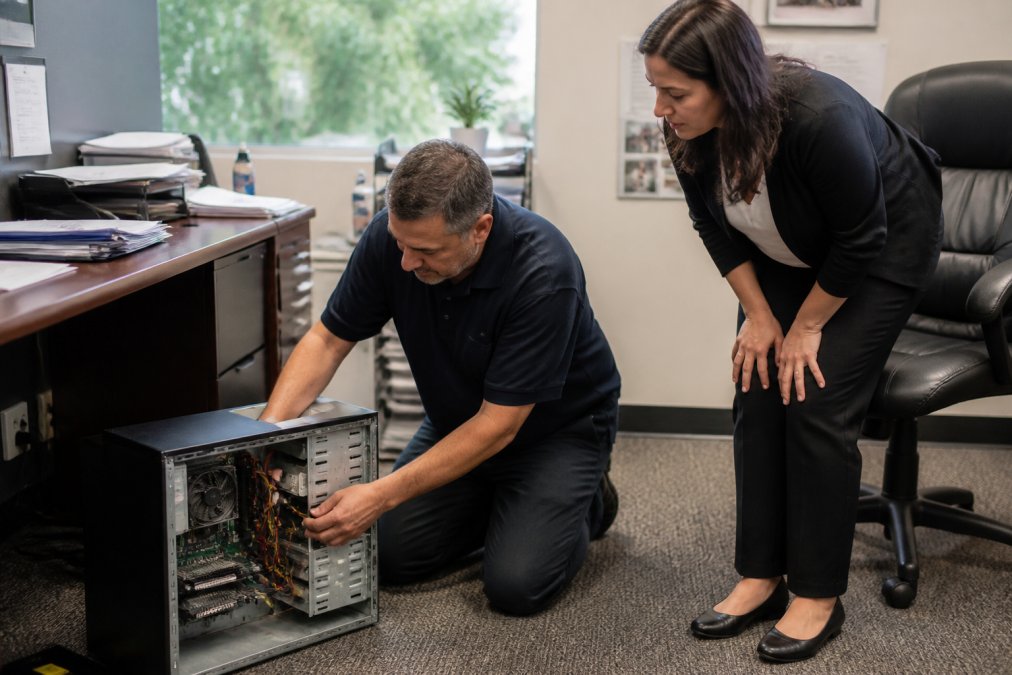
The practical advantage is speed. Most on-site visits aim for diagnosis and repair in one session, whereas drop-off shops may add a queue before work begins. For a business losing revenue by the hour, that gap is decisive.
On Site Computer Repair San Jose: What Services a Technician Brings to You
A mobile technician arrives with a toolkit and a laptop loaded with diagnostic software, prepared to handle most common failures. On site computer repair services typically cover hardware replacement, including laptop screen repair, battery replacement, and cracked screen swaps, plus desktop maintenance such as power supply and fan replacement.
Software issues take up a large share of calls. Operating system installation, system restoration after crashes, and virus and malware removal are standard mobile tasks. Technicians also perform software optimization to speed up sluggish machines and configure BIOS settings for hardware upgrades. Many providers offer remote assistance for follow-up fixes once the technician has established a secure connection.
Data recovery deserves special attention. When a hard drive fails or a system crashes, a technician can often recover files on-site using specialized tools. For a lifeless drive with mechanical failure, the drive must go to a cleanroom lab, but the technician handles the initial diagnosis and secure backup of whatever is accessible. Storage tech evolves quickly, so confirm the provider supports both traditional HDDs and modern NVMe SSDs before booking.
Check This Before You Call: A 10-Minute DIY Diagnostic
Before you schedule a visit, run through this checklist. It will either resolve the issue or give the technician a head start, saving you a billable hour of diagnosis time.
1. The ‘No Power’ Scenario
- Check the outlet: Plug a lamp or phone charger into the same wall outlet. A tripped GFCI or a dead surge protector is a common culprit.
- Test the power brick: Look for a small LED on the laptop’s AC adapter. If it is off, the brick is likely dead. For desktops, verify the switch on the back of the power supply is in the ‘1’ position.
- Perform a hard reset: For laptops with a removable battery, unplug the AC adapter, remove the battery, hold the power button for 30 seconds, then reconnect and try again. For modern laptops with sealed batteries, hold the power button for 30 seconds with the charger unplugged.
2. The ‘Slow as Molasses’ Scenario
- Check storage space: On Windows, open File Explorer and see if your C: drive is nearly full (less than 10% free space). On macOS, go to Apple Menu > About This Mac > Storage. A full drive is the #1 cause of slowdowns.
- Identify resource hogs: Press
Ctrl + Shift + Escon Windows to open Task Manager. Click the ‘Processes’ tab and sort by CPU or Memory. If a single application like Chrome or Zoom is using 90%+ CPU, that is your problem. On macOS, use Activity Monitor in Utilities. - Restart, don’t shut down: Windows ‘Fast Startup’ can cause driver issues. Choose ‘Restart’ instead of ‘Shut Down’ to get a clean boot.
3. The ‘No Internet’ Scenario
Learn more about our services today! →
- Power cycle your modem and router: Unplug both, wait 60 seconds, plug the modem back in, wait for it to fully sync (all lights solid), then plug the router back in.
- Check for a VPN issue: Disconnect from any corporate VPN and test again. Many ‘no internet’ issues are actually VPN configuration problems.
- Run the built-in troubleshooter: On Windows, go to Settings > Network & Internet > Status > Network Troubleshooter. On macOS, go to System Settings > Network and click ‘Diagnostics’.
4. The ‘Blue Screen of Death’ (BSOD) Scenario
- Note the stop code: Write down the exact error code (e.g.,
CRITICAL_PROCESS_DIEDorMEMORY_MANAGEMENT). This tells the technician whether it is a driver issue, a RAM failure, or a corrupted OS file. - Boot into Safe Mode: If the system restarts into a loop, force it off three times (hold the power button). On the third boot, it should enter the Windows Recovery Environment. Select Troubleshoot > Advanced Options > Startup Settings > Restart, then press 4 for Safe Mode. If it boots in Safe Mode, the issue is likely a driver or startup program, not a hardware failure.
Take a photo of any error message or stop code with your phone. Even if the screen goes black, you will have the exact text to show the technician. This single habit can significantly cut diagnostic time on a typical visit.
If you have run through these steps and the issue persists, you have armed yourself with valuable diagnostic information. When you call for on-site service, you can tell the dispatcher, “I’ve already done a hard reset and checked the power brick, the LED is on, but the laptop still won’t POST.” That level of detail ensures the right technician arrives with the right parts, turning a potential two-visit problem into a single-visit fix.
How to Get an Accurate Computer Repair Cost Estimate Before the Visit
Getting a reliable computer repair cost estimate starts with a precise description of the symptom, not a guess at the cause. Write down when the problem started, any error messages, and what you were doing when the system failed. This information lets the dispatcher match you with a technician who carries the right parts.
Most providers quote a diagnostic fee that covers the technician’s time to identify the issue. That fee is typically credited toward the repair if you approve the work. Hardware replacement costs vary widely by component, which is why an accurate estimate depends on knowing the exact model and age of your machine. For a laptop screen repair, the technician needs the model number to confirm part availability before arrival.
Transparent pricing models separate reputable providers from vague ones. A professional dispatch should give you a range before the visit and confirm the final number before installing any part. Ask directly: “What is your hourly rate, and does the diagnostic fee apply to the repair?” If the answer is unclear, treat that as a warning sign. For current rates and service packages, check the Computer Experts Corp website for a detailed breakdown.
What an IT Support Response Time Service Level Agreement Actually Covers
An IT support response time service level agreement defines how quickly a provider will respond to a ticket, not how quickly the problem will be fixed. The distinction matters. A common misconception is that a two-hour SLA means your network is restored in two hours. In practice, it means a technician acknowledges your ticket and begins remote troubleshooting within that window.
| SLA Component | What It Covers | What It Does Not Cover |
|---|---|---|
| Response Time | Acknowledgment and initial remote diagnosis | Physical arrival or resolution |
| On-Site Arrival | Technician dispatched to your location | Completion of the repair |
| Resolution Time | Fixing the reported issue | Additional problems discovered later |
| Availability Window | Hours when support is reachable | Guaranteed uptime or performance |
Strong SLAs separate response from on-site arrival and resolution. If your business cannot absorb downtime, look for a provider that guarantees a technician on-site within a defined window, not just a remote acknowledgment. For medical and legal offices, the SLA should also address how the provider handles protected data during remote sessions. Ask whether the provider documents HIPAA-compliant remote access procedures before you sign.
Red Flags and Green Flags When Vetting a Local Technician
Vetting a technician starts with verifying they actually employ local staff. A national call center routing tickets to contractors across the country cannot deliver the same accountability as a Bay Area team with certified technicians who service the same neighborhoods weekly. Ask directly whether the technician dispatched to your office is a local employee or a subcontracted third party.
Green flags include published hourly rates, a clear warranty on parts and labor, and technicians who carry common replacement parts in their vehicles. A provider that stocks laptop screens, batteries, and power supplies for major brands can complete most hardware replacements in one visit. Certified technicians with documented training in operating system installation and network configuration signal a serious operation.
Red flags are equally clear. Vague pricing that requires a “site assessment” before quoting, refusal to provide a warranty in writing, and technicians who cannot articulate their data privacy protocols all warrant caution. Ask how the provider handles your data during a repair. A professional will explain their process for securing patient records or client financial data before touching a machine. If the response is dismissive, find another provider.
Learn more about our services today! →
How to Prepare Your Office or Home for a Productive Repair Visit
Preparation determines whether a repair takes one visit or three. Back up critical files before the technician arrives, even if the issue seems unrelated to storage. A power supply failure can take down a system unexpectedly, and a technician may need to test components in ways that risk data.
Document your passwords and account credentials for the technician, but do not leave them visible. Create a temporary note with the admin password and any software license keys the technician may need, then remove it after the visit. For business environments, notify employees that a technician will be on-site and remind them not to share sensitive information beyond what the repair requires.
Clear physical access to the equipment. Move boxes, cables, and furniture away from the workstation. If the issue is network-related, confirm the location of the router and any switches. For homes with complex networking problems, label the devices you know and write down what happens when the connection fails. This information saves the technician time and reduces the chance of a misdiagnosis.
Take a photo of the error message and the back panel of your computer before the visit. The technician can identify the exact model and port configuration from the image, which speeds up parts verification and avoids a second trip for a forgotten adapter.
Get Your Systems Back Online With a Local Expert
Downtime is expensive, and the right repair approach minimizes it. On site computer repair San Jose services keep your hardware in your control, your data on your premises, and your business running with minimal interruption. The key is choosing a provider with transparent pricing, certified local technicians, and a response time service level agreement that matches your actual tolerance for downtime.
Computer Experts Corp has served Bay Area businesses, medical practices, and startups as the region’s oldest IT service provider. Our team handles everything from hardware replacement and virus removal to full network design and 24/7 technical support, both on-site and remotely. We understand the compliance demands of healthcare and legal work, and we build infrastructure that scales with growing companies. Get your systems back online with a local expert who answers when you call.
Frequently Asked Questions
How much should a professional on-site computer repair visit cost?
A computer repair cost estimate for on-site service depends on the diagnosis, parts needed, and travel time. Most providers quote a flat fee for the visit plus an hourly rate for labor, but you should ask for a detailed estimate before work begins. The total often depends on whether the issue is software-related or requires hardware replacement. Contact Computer Experts Corp for a current quote tailored to your specific equipment and location.
What is the typical response time for on-site IT support in San Jose?
Response times vary by provider, which is why an IT support response time service level agreement matters. Response times vary by provider, which is why an IT support response time service level agreement matters. Always confirm the guaranteed response window in writing before signing a contract.
Is it better to take my computer to a shop or have a technician come to me?
On site computer repair is usually the right choice when your machine is a server, a desktop that is difficult to move, or part of a networked office setup where other devices depend on it. A shop visit makes sense for a simple laptop screen replacement or data recovery from a single drive. On-site service also allows the technician to see the full environment and fix network or connectivity issues at the source.
What should I back up before an on-site technician arrives?
Back up your critical files to an external drive or a cloud service before the appointment. This protects your data during diagnostics, especially if the technician needs to reinstall the operating system or replace a failing hard drive. Write down any passwords for your user accounts and software licenses, but do not share them until the technician asks. A clean backup also speeds up the repair process significantly.